SwiftUI: 콘텐츠에 맞게 ScrollView 크기를 조절하는 방법 및 최대 높이 지정
SwiftUI: 콘텐츠에 맞게 ScrollView 크기를 조절하는 방법 및 최대 높이 지정
소개
ScrollView는 별도로 제한되지 않는 한 허용된 모든 공간을 차지합니다. 그렇다면 스크롤 뷰를 자식 View의 높이를 차지하게 하려면 어떻게 해야 할까요?
방법
기존의 코드
다음 예를 살펴보겠습니다. 여기서 ScrollView만 사용하면 아래와 같은 렌더링 결과를 얻습니다.
1
2
3
4
5
6
7
8
9
10
11
12
13
14
15
16
17
18
19
20
21
22
23
24
25
26
27
28
29
30
31
ScrollView{
    HStack{
        Text("Expenditure, May 2025")
            .font(.fustat(size: 12, fontWeight: .semibold))
            .tracking(-0.5)
            .foregroundStyle(.surfaceBlack.opacity(0.7))

        Spacer()

        Text("$3,400")
            .font(.fustat(size: 24, fontWeight: .black))
            .tracking(-0.8)
            .foregroundStyle(.surfaceBlack)
    }

    VStack(alignment: .leading, spacing: 16){
        Text("Pending Payements")
            .font(.fustat(size: 16, fontWeight: .semibold))
            .tracking(-0.8)
            .foregroundStyle(.surfaceBlack)

        MakePaymentSlider(onSwiped: {})
    }
    .padding(.all, 16)
    .background(.surfaceGreen)
    .cornerRadius(16)
}
.padding(.horizontal, 16)
.padding(.bottom, 16)
.background(.accentGreen)
.clipShape(RoundedCorner(radius: 32, corners: [.bottomLeft, .bottomRight]))
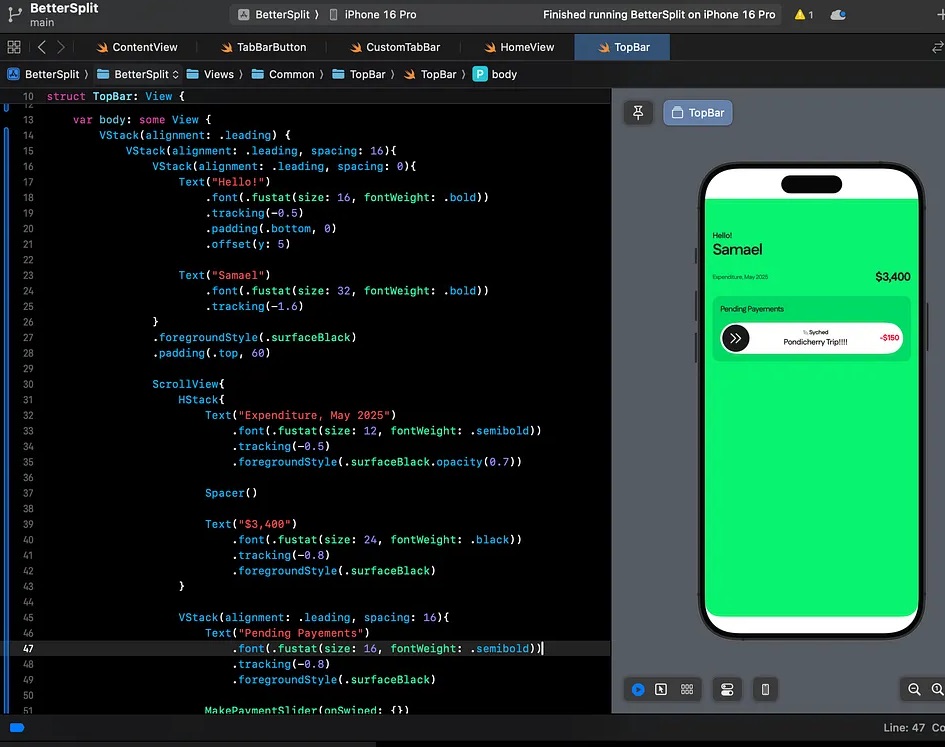
일반 스크롤 뷰 렌더
GeometryReader로 자식 뷰의 높이 추출
이 코드에서, GeometryReader를 자식(VStack)에 추가하고 자식 뷰의 높이를 얻습니다.
1
2
3
4
5
6
7
8
9
10
11
12
13
14
@State private var scrollViewContentSize: CGSize = .zero //Outside body

VStack { // 높이를 구하고자 하는 자식 뷰
    Text("Pending Payements")
    // ... //
}
.background(
    GeometryReader { geo -> Color in
        DispatchQueue.main.async {
            scrollViewContentSize = geo.size
        }
        return Color.clear
    }
)
- GeometryReader 를 배경(background)에 붙여
- 해당 뷰의 실제 렌더링된 사이즈(
geo.size) 를 읽고 scrollViewContentSize라는 @State 변수에 값을 저장- “뷰를 그리는 중에 상태를 변경하면 안 된다”는 규칙이 있으므로 Dispatch.main.async 사용
- GeometryReader는 기본적으로 “뷰를 채우는” 레이아웃 특성을 갖기 때문에
- background에 넣으면 해당 뷰의 크기 그대로 반환하게 됩니다.
- 마지막으로
Color.clear를 반환하여 배경에는 아무것도 출력되지 않게 합니다.- ViewBuilder 안에서 반드시 한 가지 View 를 반환해야 하므로 보이지 않는 빈 배경 리턴
자식 뷰의 높이로 스크롤뷰의 maxHeight 설정
그리고 ScrollView에 .frame을 추가하여 해당 높이로 제한합니다.
1
2
3
4
5
6
7
8
9
10
11
12
13
14
15
16
17
ScrollView{
    VStack{
        Text("Pending Payements")
        // ... //
    }
    .background(
        GeometryReader { geo -> Color in
            DispatchQueue.main.async {
                scrollViewContentSize = geo.size
            }
            return Color.clear
        }
    )
}
.frame(
    maxHeight: scrollViewContentSize.height
)
최대 높이 maxHeight를 제한
maxHeight를 제한하지 않으면 일반적인 뷰를 사용한것과 차이가 없으므로 일정 높이 전까진 컨텐츠 크기에 맞게 조절되게 하다, 특정 높이를 초과하면 스크롤 뷰로 동작하게 하는 방법입니다.
1
2
3
4
5
6
7
8
@State private var scrollViewContentSize: CGSize = .zero
let maxScrollViewContentHeight: CGFloat = 400

// ... //

.frame(maxHeight:
    min(scrollViewContentSize.height, maxScrollViewContentHeight)
)
결론
화면에 렌더링되는 모든 동적 뷰의 높이를 찾는 매우 중요한 코드는 다음과 같습니다.
1
2
3
4
5
6
7
8
.background(
    GeometryReader { geo -> Color in
        DispatchQueue.main.async {
            scrollViewContentSize = geo.size
        }
        return Color.clear
    }
)
This post is licensed under
CC BY 4.0
by the author.